Connecting with pgAdmin
To use the pgAdmin client to manage your database and the objects that reside on it, right-click on the Servers node in the pgAdmin client, and select Register, then Server from the context menu.
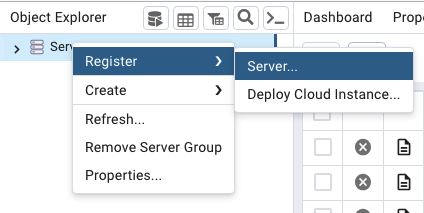
The Register - Server dialog opens:
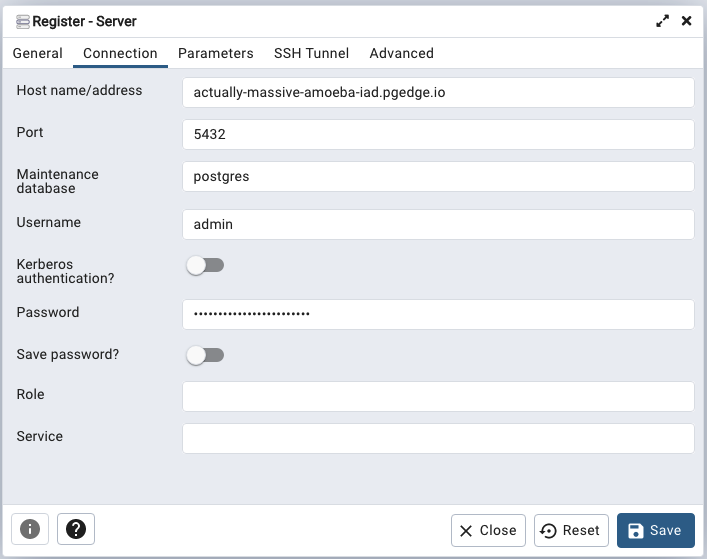
When prompted, provide the following information on the Connection tab:
-
Provide the database name clause that ends with
.pgedge.ioin theHost name/addressfield. In our example, the database host name is:actually-massive-amoeba-iad.pgedge.io. -
Provide the name of your database in the
Maintenance databasefield. In our example, the database name isreceivables. -
Replace the default
Usernamewithadminwhen connecting for the first time. -
Enter the password associated with the user in the
Passwordfield.
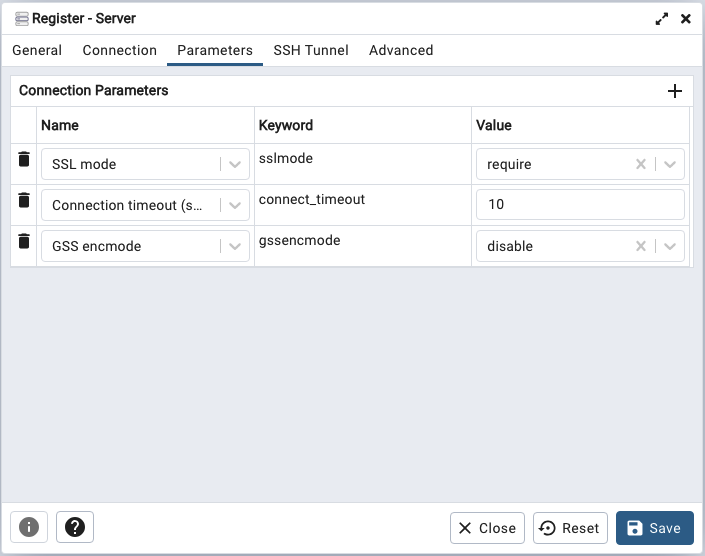
Provide the following information on the Parameters tab:
-
Use the drop-down to the right of
SSL modeto selectrequire. All client connections to pgEdge Developer Edition are required to use SSL. -
Use the
+at the top of the parameter table to open a new row, and use the drop-down list in theNamefield to selectGSS encmode. Set theValuetodisable
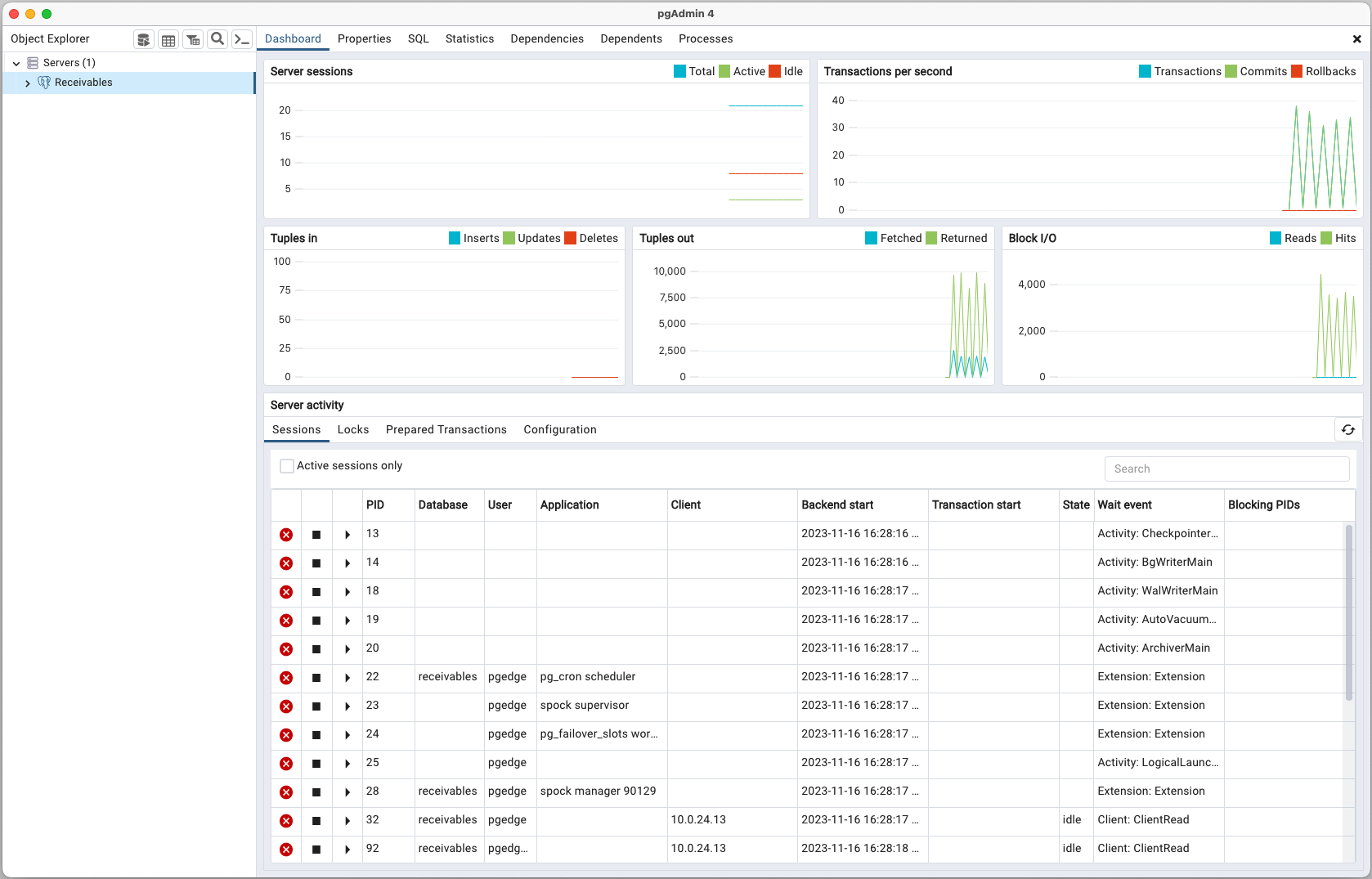
Complete the other tabs in the Register - Server dialog specifying your connection preferences, and select Save. The connection to your database is added to the Servers node in the Object Explorer pane, and the pgAdmin Dashboard displays current database activities.