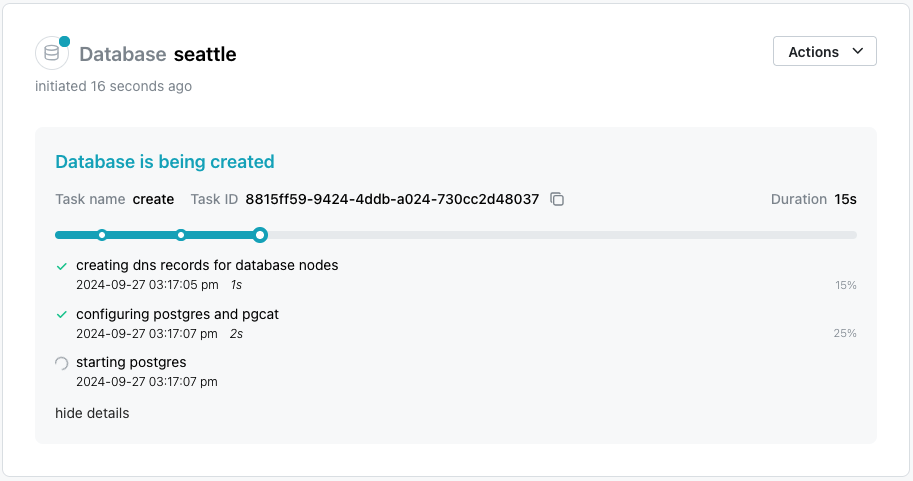
Creating a New Database
To create a new database, select the Databases node in the navigation tree control; then, select the + New Database icon located in the upper-right corner of the page.
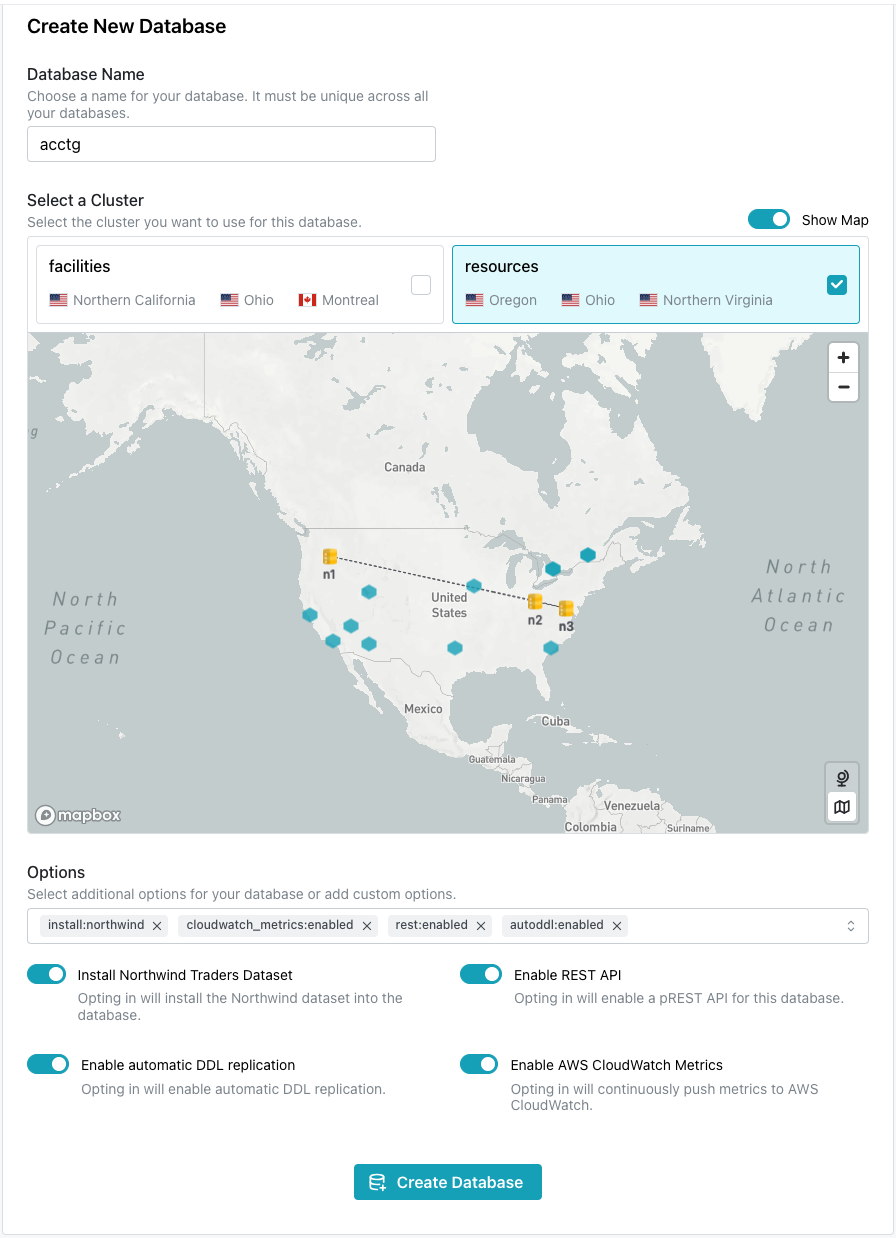
When the Create New Database dialog opens:
-
Provide a name for the database in the
Database Namefield. -
Select the cluster you would like to host your new database from the options shown under
Select a Cluster.-
If you are a pgEdge Enterprise Edition user, the dialog displays your clusters and their deployment regions. Check the box in a cluster pane to deploy on that cluster.
-
If you are a pgEdge Developer Edition user, you can choose from three cluster configurations for testing and experimentation:
US - Europeoffers an East Coast/West Coast US configuration with one server in Frankfurt.USoffers an East Coast/Midwest/West Coast configuration.Globaloffers servers on the West Coast, in Frankfurt, and Singapore.
-
Defining a Backup Strategy
Developer Edition databases use pg_dump as their backup provider.
The Backup Configuration dialog allows you to select the backup provider and configuration you wish to use for your Enterprise Edition databases.
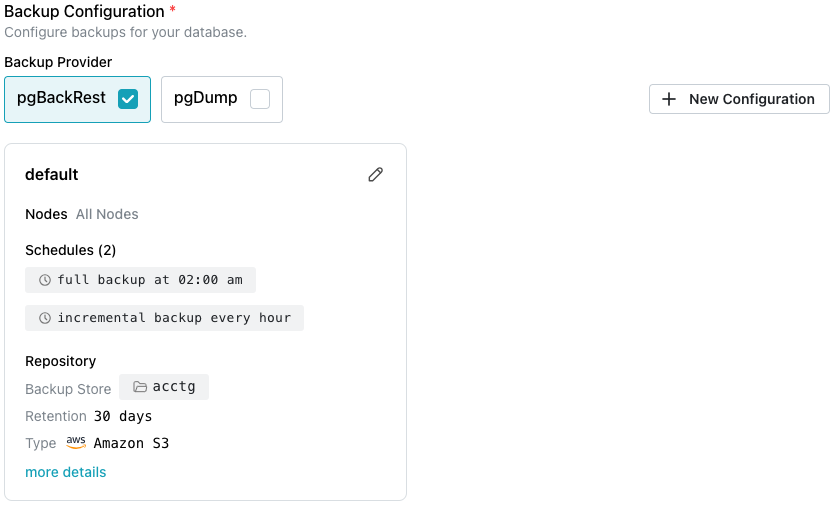
Use fields in this section to select the backup strategy for your database:
- Select
pg_dumpto use pg_dump for backups. Note that if you select pg_dump, you cannot customize the backup schedule and storage details, but backups can be downloaded for use on other systems. - Check the box next to
pgBackRestto use pgBackRest for backups. Note that if you do choose to use pgBackRest for backups, you can customize the backup schedule and storage, but backups cannot be downloaded.
By default, pgBackRest is the selected backup utility; the first Backup Store you attached to the cluster will be pre-configured with a default configuration that applies to all database nodes. The configuration defines a schedule that includes a daily full backup, with hourly incremental backups, but you can modify the schedule. There must be at least one configuration if your selected backup provider is pgBackRest, so configurations can only be removed from the form if there is more than one.
You cannot modify a backup configuration or your selected database backup provider after database deployment.
Additional Database Installation Options
The Options section displays optional features you can enable when your database is provisioned:
- Use the toggle switch next to
Install Northwind Databaseto install the Northwind sample database and schema objects. - Use the toggle switch next to
Enable automatic DDL replicationto turn on automatic DDL updates (opens in a new tab). - Use the toggle switch next to
Enable REST APIto enable a PREST API; you can use the API to enable HTTPS connections (opens in a new tab) to your database. For more information about using pRESTd, visit the project site (opens in a new tab). - Use the toggle switch next to
Enable AWS CloudWatch Metricsto share metrics with AWS CloudWatch (opens in a new tab).
When you've made your selections, click Create Database to initialize a PostgreSQL database and start replicating data between the nodes in the cluster. Your new database is added to the list of databases in the left pane of the console; a green dot to the left of the name indicates that the database is available for connections.